
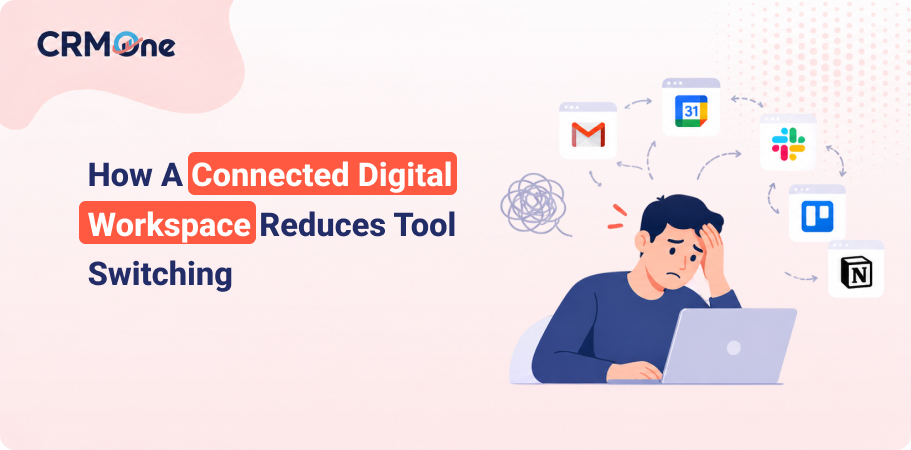

A team can lose time without appearing unproductive. Someone copies meeting notes into a task message, searches several inboxes for a file, or asks which document contains the current numbers. Each action takes only a few minutes. Repeated across a week, the interruptions add up.
Tool switching also creates version problems. A document is downloaded, edited, and sent back as an attachment. Another person changes an older copy. The team then spends time comparing files instead of completing the work.
A connected workspace reduces these handoffs by keeping communication, documents, meetings, and schedules within one account system. The goal isn’t to remove every specialized tool. It’s to keep everyday work from breaking into disconnected pieces.
Start With Repeated Workflows
List the tasks your team performs every week. Include client updates, campaign planning, report reviews, and internal approvals. Note where people leave one tool and enter another to continue the same task.
Focus on switches that create delay or confusion. Moving from a video meeting to a shared document can be useful. Downloading that document, emailing it, and storing another copy creates avoidable work. A workflow map shows which connections deserve attention first.
Keep Files Close to Communication
A project conversation is easier to follow when participants can open the same working file. Use shared links instead of sending attachments. Set a clear location for final documents so team members don’t search old message threads.
Create naming rules that people can follow without a long manual. Include the project, document purpose, and date only when the date helps. Consistent names improve search and reduce the chance that “final,” “final two,” and “final approved” become separate records.
Connect Daily Tools
A workspace becomes useful when email, calendars, documents, and meetings share the same account structure. Users can move from a message to a call or open a file without rebuilding context in another system.
Teams that want communication and shared work under one business account can use Google Workspace to connect professional email, Drive storage, documents, spreadsheets, calendars, and video meetings. Gemini features also support selected tasks within the included applications. A connected setup reduces repeated sign-ins and gives administrators one place to manage user access.
Protect Remote Access
Connected tools are available from many devices, which makes access policy important. Decide which devices can hold business data and what happens when one is lost. Require strong authentication and remove old accounts quickly.
The NIST guide to telework and remote-access security recommends policies and safeguards for remote work technologies and devices. Use that guidance to support your workspace rules. Convenience should come with clear expectations for account protection, device security, and approved access methods.
Use Shared Calendars Properly
Shared calendars can reduce scheduling messages when teams use them consistently. Ask employees to keep availability current and record working hours where needed. Use separate calendars for company events or shared resources.
Avoid filling calendars with reminders that don’t require attendance. Too many entries make important meetings harder to see. A calendar should help people protect focus time as well as find a suitable meeting window.
Make Meetings Produce Work
A video call should create a clear result. Put the agenda in a shared document before the meeting and let participants add questions. Record decisions and assigned work in the same place.
Keep notes brief enough to use. A full transcript can preserve detail, but it doesn’t replace a decision summary. Identify the owner and due date for each action. Store the notes where the team expects to find them.
Reduce Duplicate Storage
Decide which location holds active work and which one holds completed records. Avoid keeping the same file in personal drives, shared folders, and email attachments. Duplicates make access reviews and deletion harder.
Use shared drives or team folders for work that belongs to the organization. This keeps files available when an employee changes roles. Review folder structure as the company grows because a system designed for five people can become confusing at fifty.
Train Around Real Tasks
A general tour of every application can overwhelm new users. Teach the workflows they will perform during their first week. Show them how to locate a team file, schedule a meeting, request a review, and share a document safely.
Keep short instructions in a shared location. Update them when the workflow changes. Ask new employees which steps were unclear. Their questions can reveal assumptions that experienced team members no longer notice.
Measure Fewer Interruptions
Track practical signals after connecting the workspace. Look at time spent finding files, repeated access requests, duplicate documents, and meetings delayed by missing information. Ask teams which handoffs still require copying data between systems.
A connected digital workspace succeeds when people can continue a task without repeatedly rebuilding its context. Set shared rules for files and access, then train around daily work. The technology provides the connection, while consistent team habits turn that connection into saved time.
Get started for Free
Start for free today. Boost your sales by clicking the Get Started button. With CRMOne, you can manage leads, sales, and customer service all in one place.
